Build Version: 2026-06-30-01:52:24 UTC
Purpose:
The purpose of the new CM Data Alert feature is to highlight the possible rate of change when recording a condition monitoring value that is still within the min/max trigger points but has changed enough to be a concern.
This change can be seen on the chart but sometimes not recognised by the person registering the value. For instances where a brake wear value stops becoming a declining value and changes to gain size. This could be either the person recoding the value is reporting the wrong value or that the brake has an internal issue causing the value to increase when it should continue to decrease.
Key Points:
The alerts are only activated on specific task questions. It does not need to be applied to all. It may only be applied for a short period of time to capture a snapshot in time.
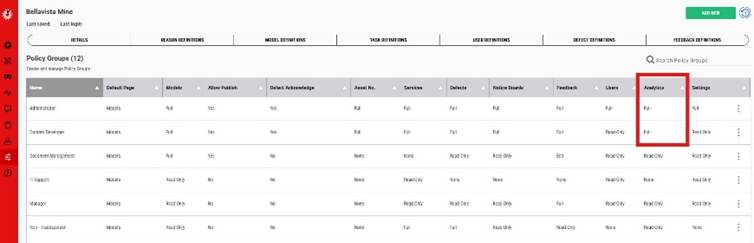
This is a policy based aligned feature where people with access to Full model editing can activate this feature as well as people with Full Analytics access can also activate the feature. There are two methods of applying this feature as shown below.
Feature | Comments |
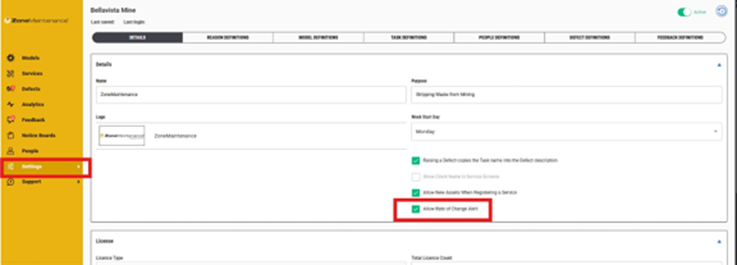
| Client Administrator needs to activate the feature capability within the Site Application Settings.
This feature is an as required type option where it may or may not be that important to the site to activate. |
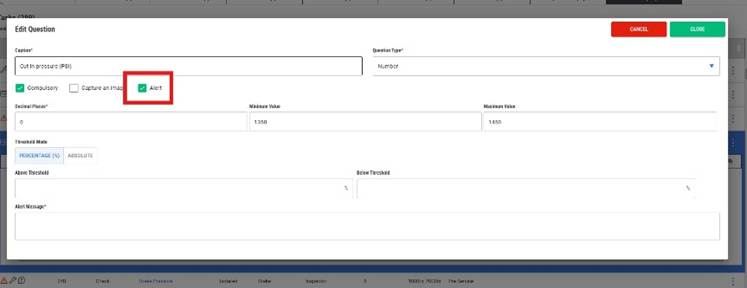
| Within a model task question where a Number question type is applied, we have a new feature activation box called Alert.
Clicking on this box will present new fields that can be edited. |
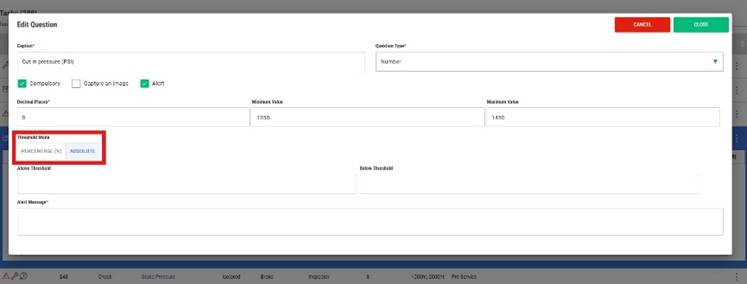
| First question to be defined.
Is the alert going to be activated based on a percentage of change or a absolute value of change? |
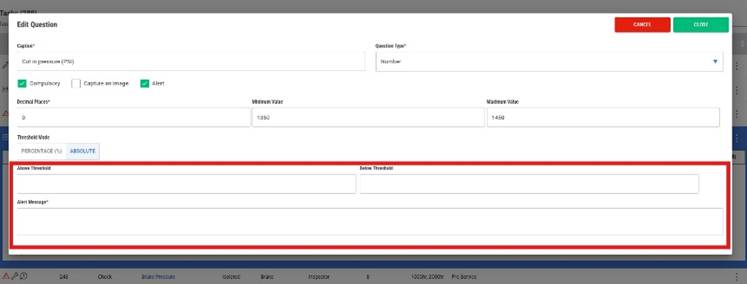
| What are the above and below thresholds and what is the message to the person recording the value? |
| If a person has access to FULL Analytics access defined in the Site Application policy Group, then they will be able to apply this feature to a Condition Monitoring Question |
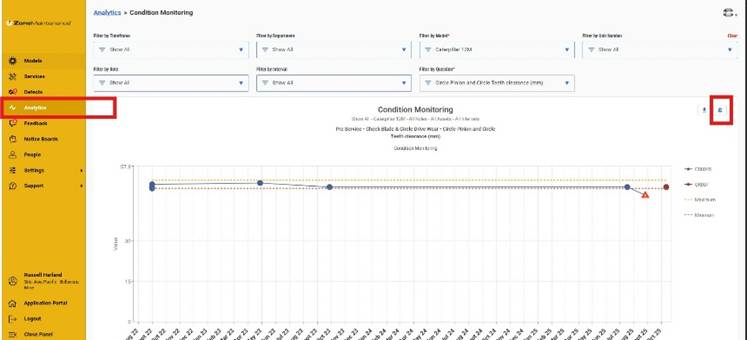
| Within Condition Monitoring Analytics, select the model and task question to show the chart.
Top right corner of the chart is the new Alert Icon.
Click on this to open the editing feature. |
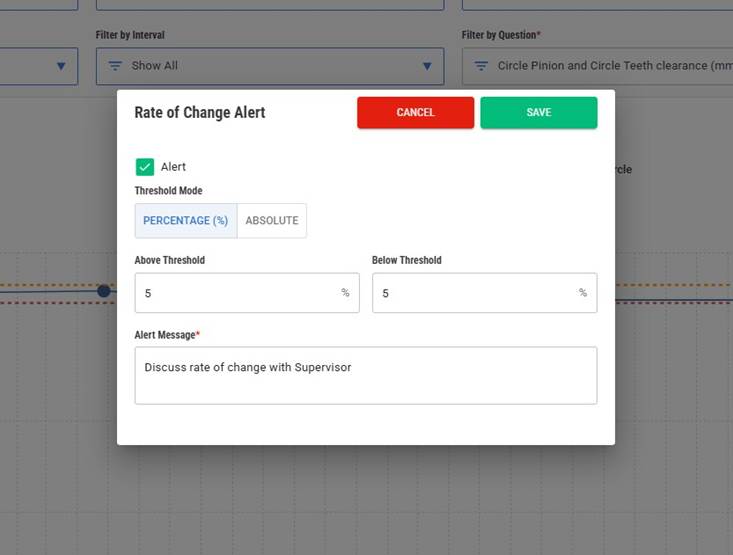
| The Alert box is defaulted to be activated.
Untick to deactivate this feature to this task question.
Select the threshold mode option.
Percentage % or Absolute
Enter the above and below thresholds.
Define the message to the person recording this value to the task question on the iPad application. |
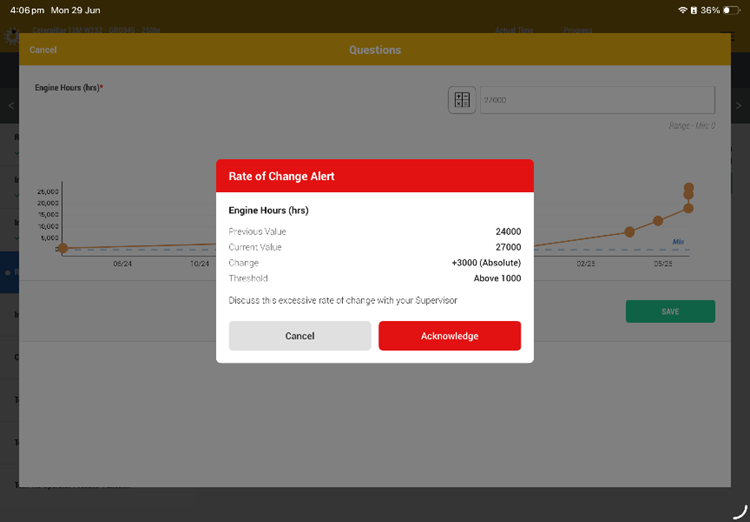
| Where a value is above or below the defined thresholds and the person reporting this value on the iPad application, a popup will be presented to the person of this rate of change alert.
With this it defines what the values are and the action requested.
It is up to this person to follow this action.
They will either cancel or acknowledge the request. |
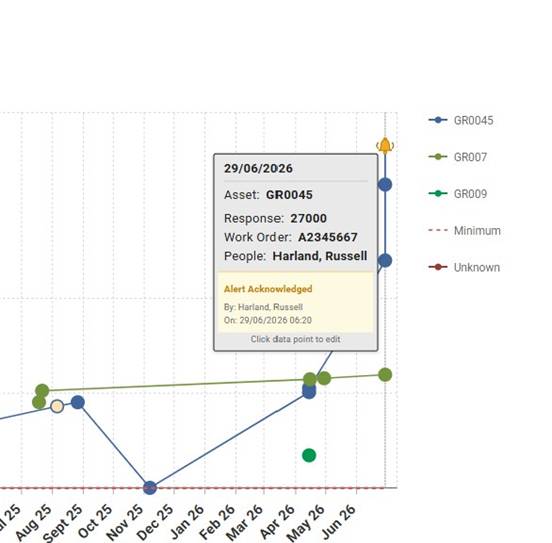
| This choice will be captured against the value in the CM Data within Analytics |
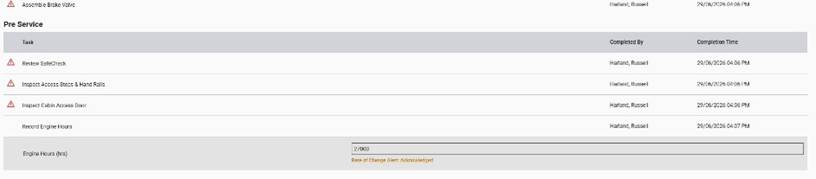
| Additionally, it will be captured in the Service/Job Report |
Was this article helpful?
That’s Great!
Thank you for your feedback
Sorry! We couldn't be helpful
Thank you for your feedback
Feedback sent
We appreciate your effort and will try to fix the article